
Setting up Unreal Engine to work with 2D is not a straightforward task. As a game engine focused towards 3D games, many of the default settings can change the overall look of 2D assets. This is a major obstacle for pixel-style games, where things such as pixel-perfect rendering are crucial to make these games look better.
This tutorial uses Unreal Engine 5 for the 2D game setup. You may use this tutorial for any Unreal Engine 4 projects, however some parameters may be different on the older version of the engine.
1. Modifying the Engine Settings for Pixel-Perfect Rendering
The following settings are based on Polyart Studio’s tutorials for the Pixel2D plugin:
- Create a new project in Unreal (I suggest to create a blank project since we won’t be dealing with any 3D elements).
- Once inside the project, go to Edit > Project Preferences.
- Go to Engine > Rendering > Default Settings or look for “Default Settings” in the search bar.
- All the options with checkboxes must be disabled. Make sure “Auto Esposure Bias” is set to 1.0, set “Antialiasing Method” to “None” and “MSAA Sample Count” to “No MSAA”.
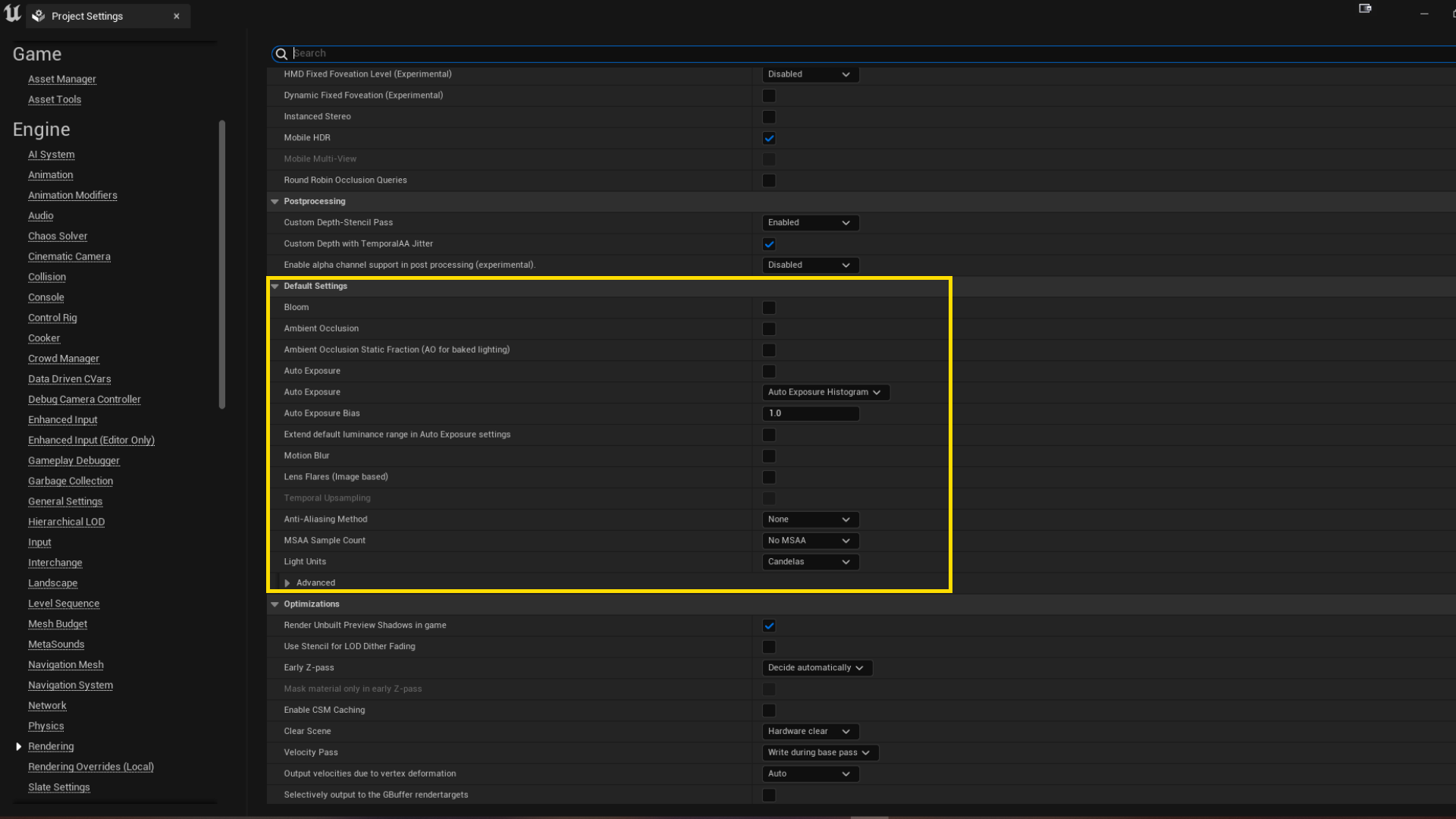
These settings ensure that most of the postprocessing effects are disabled which causes distortions in texture color and sharpness. I’ve seen in other forums that some people have Anti-Aliasing enabled (either MSAA or TSR I believe), but from my experience, having this option disabled works best with pixel-style games.
The next settings may be optional. I haven’t tested how much they affect the ending result but it doesn’t hurt to have these. Go to “Scalability Settings” either through the viewport or the “Settings” button at the top-right corner:
- Set “resolution scale” to 100%.
- All other settings are set to “low” except for Textures, which I usually set to “Epic”.
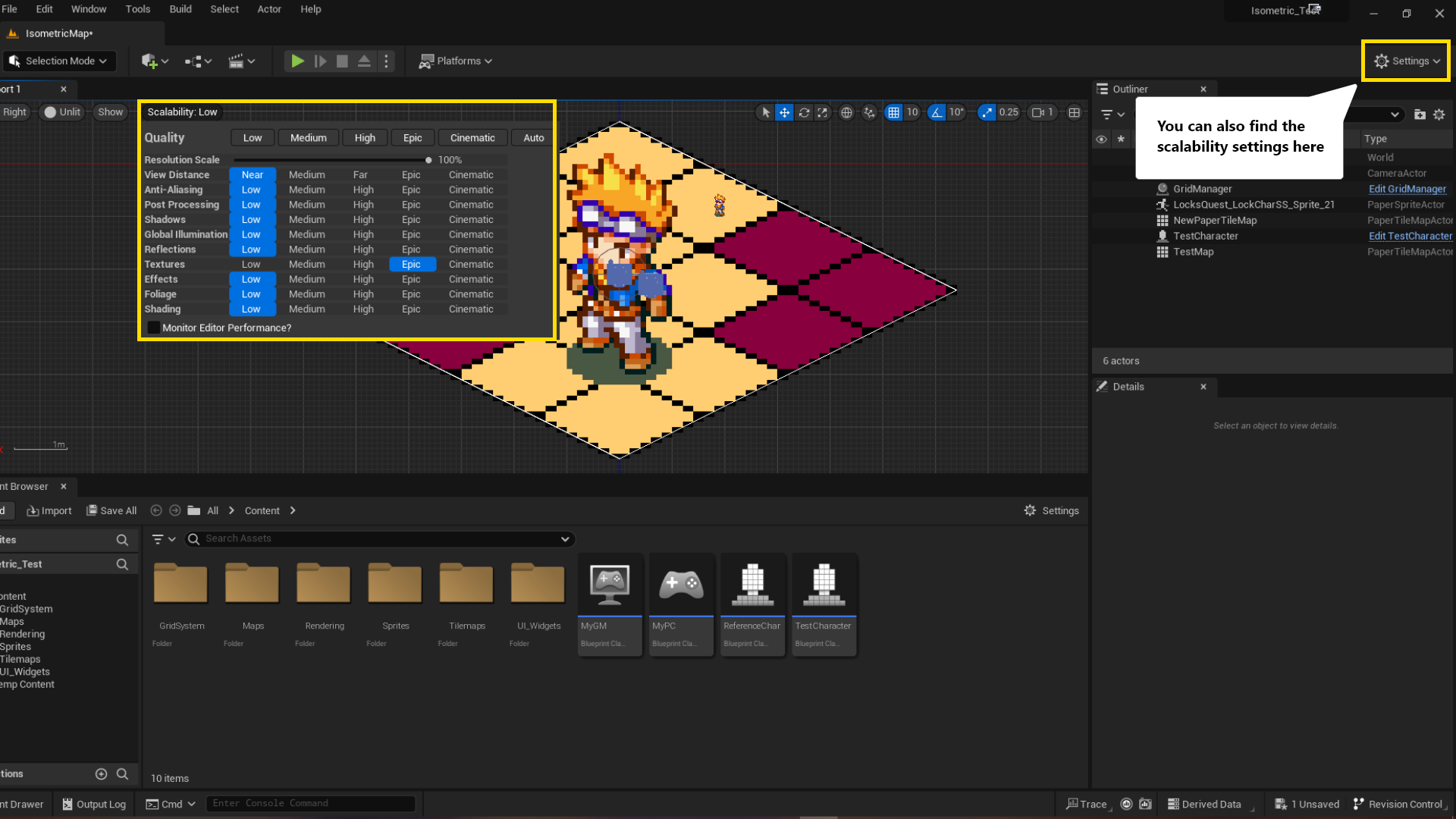
You may notice during play testing, the sprites will have a slight blur effect despite having the anti-aliasing disabled. This has been noted to be an engine bug that only happens in the viewport when displaying big window sizes (i.e the viewport takes almost all height or in full screen mode using F11). If you play the game as “standalone game” this blur effect will no longer be present.
Source: https://polyart.gitbook.io/pixel-2d/guides/top-down-engine/top-down-engine-getting-started
2. Removing the Tone Curve (Camera Setup)
By researching forums and playing around with the camera settings, I’ve found a way to get rid of the colour tint that gets applied to textures during gameplay (this only occurs for objects placed in the world. UI Widgets for example will display exactly as the source assets). This is a postprocessing workaround that can be set in the camera options:
- Make sure you have selected your camera object (either placed in the world or the component inside a character blueprint).
- Go to Post Process > Color Grading > Misc.
- Enable “Expand Gamut” and “Tone Curve Amount” and set them to “0.0”. You can set the other options in the “Misc.” section to “0.0”, however there is no noticeable effect on the final render.
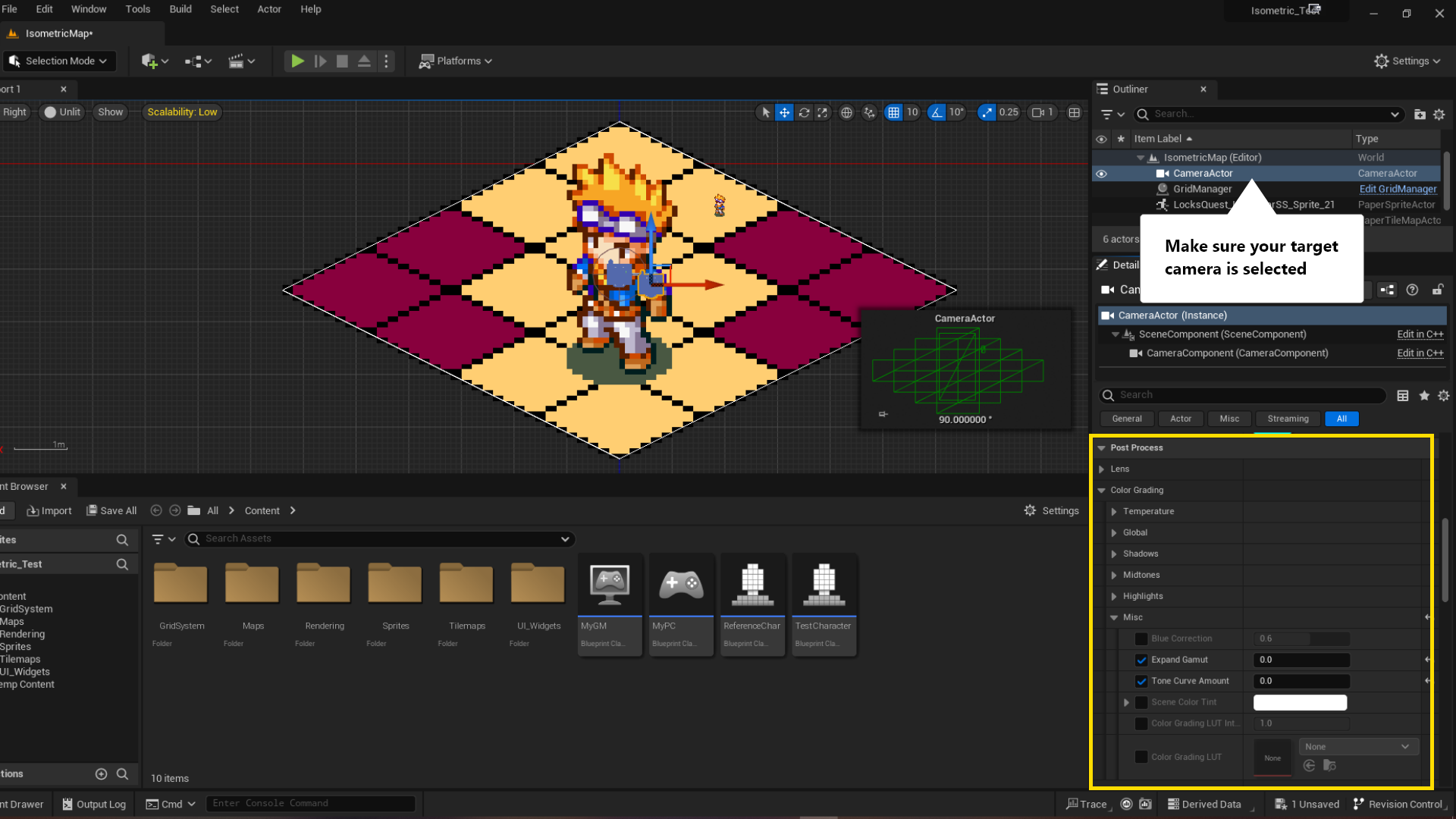
Once you’ve done this, if you still notice a colour difference between “lit” and “unlit” modes (you can change between them with F2 and F3 during play testing), that is because we still need to take care of one more thing: the “Tone Mapper”
NOTE: When setting this postprocess effect in the camera, make sure the setting “Post Process Blend Weight” is set to maximum in the “Camera Options” (select your target camera actor to find this setting). Otherwise, there wont be any changes on the final render or the camera will render everything black.
3. Removing the Tonemapper
Since 2D games usually do not rely on illumination, sprites should be rendered as previewed in the unlit mode of the viewport (since that is how the source sprites look). However, by default, the engine will render objects with a slight colour tint, making sprites look a bit desaturated. If you play around with the viewport “show” settings you will realize this is caused by postprocessing, more specifically the “Tonemapper” and “Tone Curve” settings. In step 2 we set up the camera to remove the “Tone Curve” and now we proceed to disable the “Tonemapper”. To do this we modify the default engine options through the “DefaultEngine.ini” file inside our project.
-
Find the “DefaultEngione.ini” file by searching your “source project folder” > Config > DefaultEngione.ini. Open the file using notepad.
-
The engine options are grouped in sections separated by blank lines. Go to the section that starts with [/Script/Engine.RendererSettings] and paste the following text:
  r.TonemapperGamma = 0
  r.TonemapperFilm = 0
  r.Tonemapper.Quality = 0
  r.ToneCurveAmount = 0
  r.Mobile.TonemapperFilm = 0
  r.MobileTonemapperUpscale = 0
  r.EyeAdaptationQuality = 0
r.EyeAdaptation.ExponentialTransitionDistance = 0- Save the file and open again Unreal Engine. Now the colour tint will be gone.
Source: https://georgy.dev/posts/disable-tonemapper/
Notes
When working with 2D projects, I usually create empty levels. Since these type of levels have no light sources, any camera actors that you add will render completely dark. A workaround to this is either work in “unlit” mode or add a directional light.